
About fastfetch#
Salah satu CLI (Command-Line Interface) tool yang paling sering digunakan, terutama di kalangan pengguna linux, adalah neofetch. neofetch adalah software yang digunakan untuk menampilkan informasi sistem yang kita gunakan, mulai dari hardware hingga software.1 Akan tetapi, per 26 April 2024, owner atau pemilik atau developer neofetch menghentikan pengembangan software tersebut (saya sendiri tidak tahu alasannya kenapa). Akhirnya, banyak orang mencari alternatifnya.
Akhirnya, muncullah fastfetch.
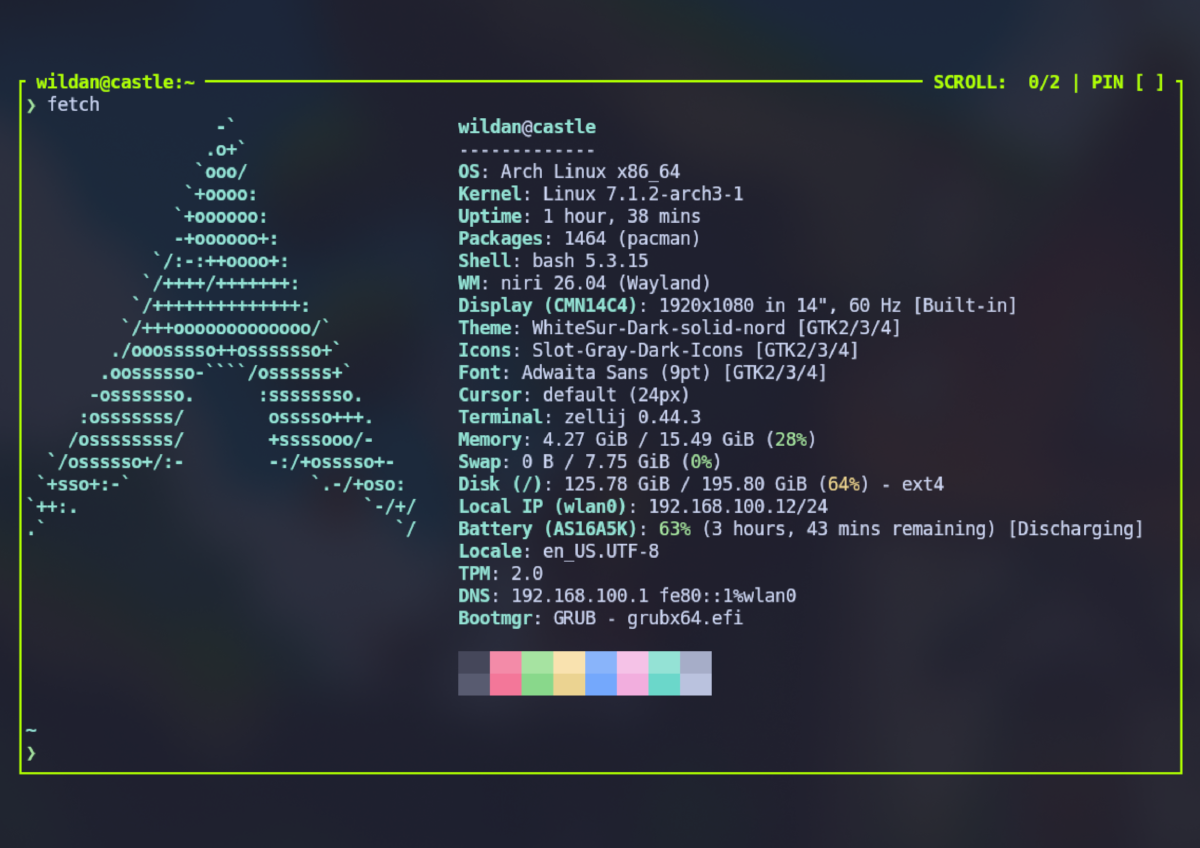
fastfetch sebetulnya identik dengan neofetch. Ia juga adalah sebuah tool berbasis CLI untuk menampilkan informasi mengenai sistem yang kita gunakan, mulai dari hardware hingga software. Perbedaan utamanya, jika neofetch ditulis langsung menggunakan bash (shell script), maka fastfetch dibuat dengan menggunakan bahasa pemrograman C. Selain itu, fastfetch juga menyediakan template dan kemudahan kustomisasi output-nya.
Installation#
Berikut adalah cara meng-install fastfetch di beberapa sistem operasi UNIX/Linux:
| Distro | Command |
|---|---|
| Debian/Ubuntu | sudo apt install -y fastfetch |
| Arch Linux | sudo pacman -Sy fastfetch |
| Fedora | sudo dnf install fastfetch |
| Opensuse | sudo zypper install fastfetch |
| FreeBSD | sudo pkg install fastfetch |
NixOS:
Masukkan baris berikut di file konfigurasi (/etc/nixos/configuration.nix):
  environment.systemPackages = [
    pkgs.fastfetch
  ];
Atau jika menggunakan nix-shell:
nix-shell -p fastfetch Usage#
Simple Usage#
Cara menggunakannya sesederhana mengetikkan perintah berikut di terminal:
fastfetch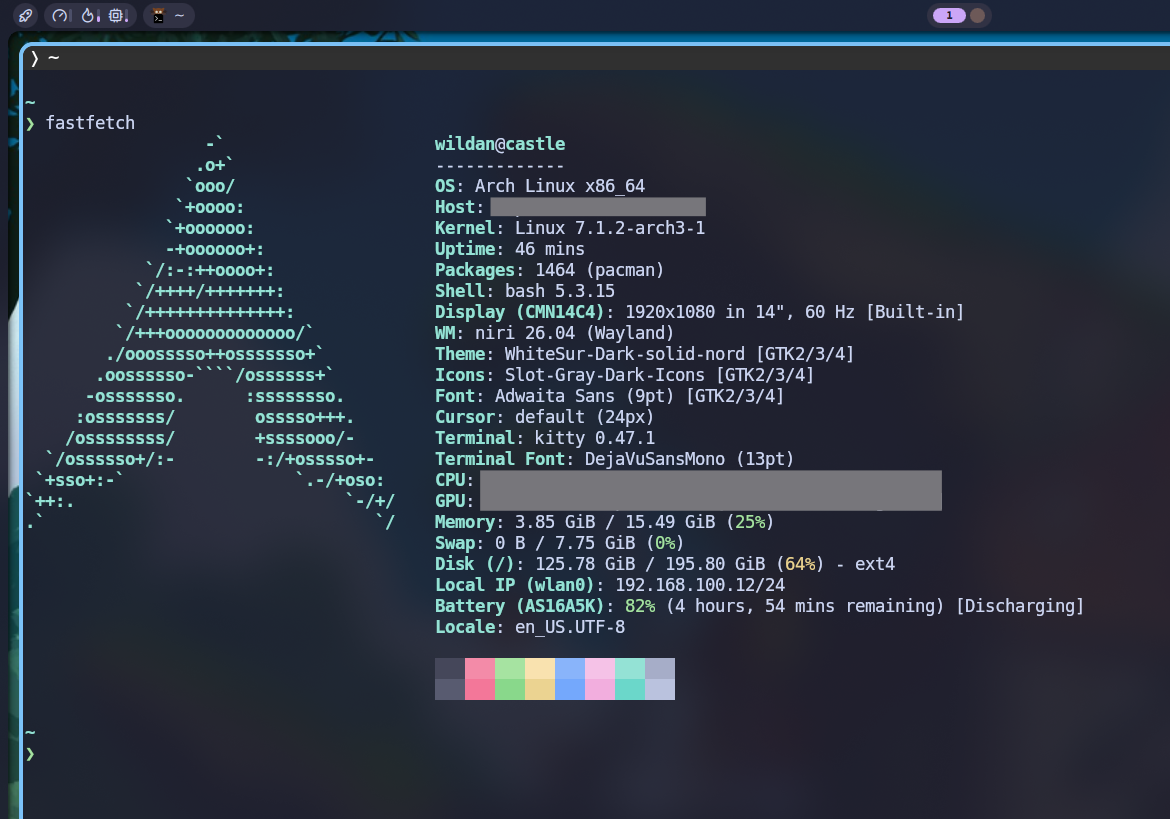
fastfetchWith Template#
Kita juga bisa menggunakan template yang sudah disediakan. Biasanya, file konfigurasi template-nya akan tersimpan di /usr/share/fastfetch/presets dan /usr/share/fastfetch/presets/examples. File configurasi fastfetch berekstensi .jsonc. Berikut adalah file tree-nya:
/usr/share/fastfetch/presets
├── all.jsonc
├── archey.jsonc
├── ci.jsonc
├── neofetch.jsonc
├── palefetch.jsonc
├── screenfetch.jsonc
└── examples
    ├── 2.jsonc
    ├── 3.jsonc
    ├── 4.jsonc
    ├── 5.jsonc
    ├── 6.jsonc
    ├── 7.jsonc
    ├── 8.jsonc
    ├── 9.jsonc
    ├── 10.jsonc
    ├── 11.jsonc
    ├── 12.jsonc
    ├── 13.jsonc
    ├── 14.jsonnc
    ├── 15.jsonc
    ├── 16.jsonc
    ├── 17.jsonc
    ├── 18.jsonc
    ├── 19.jsonc
    ├── 20.jsonc
    ├── 21.jsonc
    ├── 22.jsonc
    ├── 23.jsonc
    ├── 24.jsonc
    ├── 25.jsonc
    ├── 26.jsonc
    ├── 27.jsonc
    ├── 28.jsonc
    ├── 29.jsonc
    ├── 30.jsonc
    ├── 31.jsonc
    └── 32.jsonc
Cara menggunakannya:
fastfetch -c archey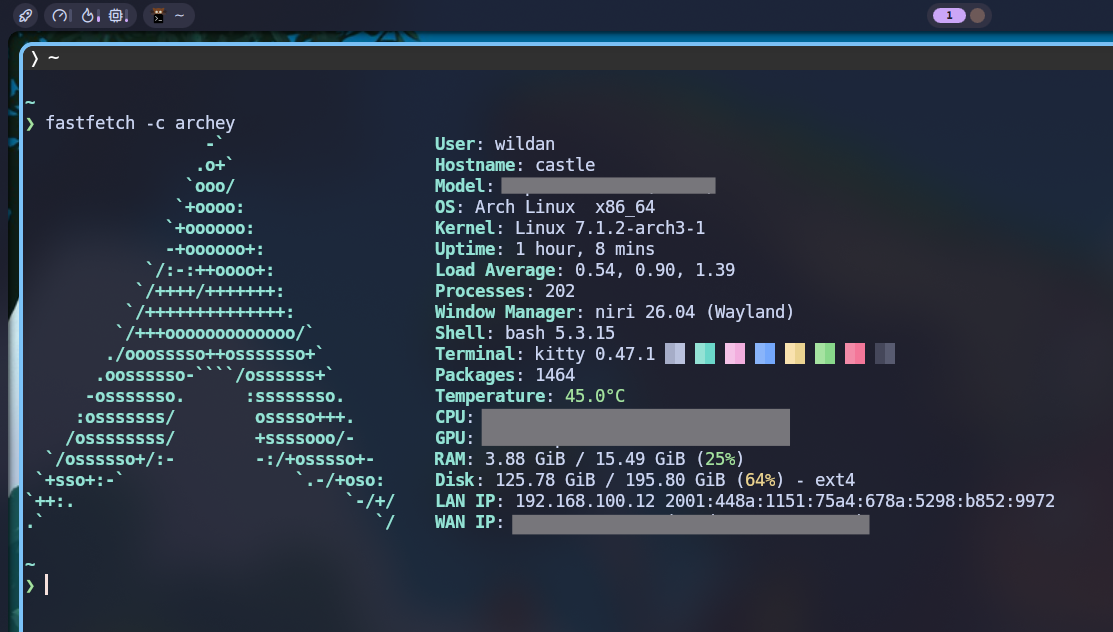
fastfetch with templateatau
fastfetch -c 24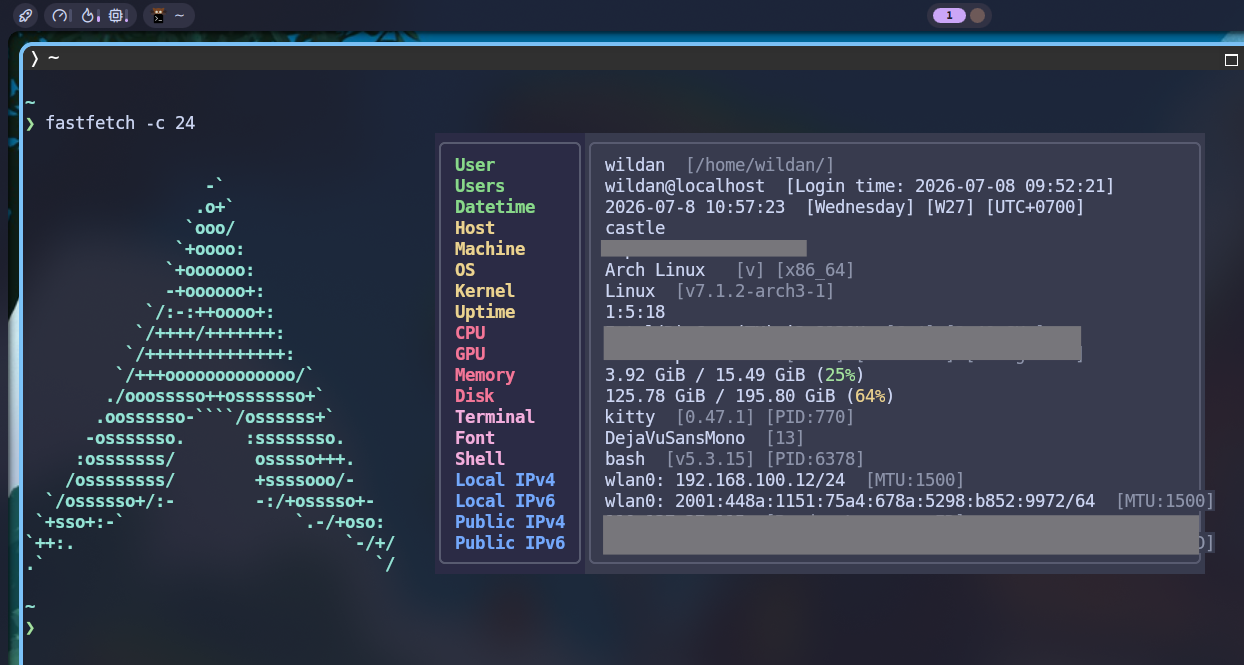
fastfetch with template 2Custom Usage#
Jika kita hanya ingin menampilkan informasi tertentu saja, kita juga bisa melakukannya.
Caranya:
- Tentukan informasi apa saja yang ingin ditampilkan.
- Gunakan tambahan tag
--structure.
1. Choosing Modules#
Untuk melihat daftar informasi yang dapat kita tampilkan dengan fastfetch, cari di:
fastfetch --list-modulesOutput-nya:
fastfetch.1) Battery : Print battery information
2) BIOS : Print first-stage bootloader information (name, version, release date, etc.)
3) Bluetooth : List connected Bluetooth devices
4) BluetoothRadio: List Bluetooth radios (supported versions, vendors, etc.)
5) Board : Print motherboard name and other information
6) Bootmgr : Print second-stage bootloader information (name, firmware, etc.)
7) Break : Print an empty line
8) Brightness : Print the current brightness level of your monitors
9) Btrfs : Print Linux BTRFS volumes
10) Camera : Print available cameras
11) Chassis : Print chassis type information (desktop, laptop, etc.)
12) Codec : Print hardware video acceleration codec types (decode / encode)
13) Command : Run custom shell scripts
14) Colors : Display the terminal's 16-color palette
15) CPU : Print CPU name, frequency, etc.
16) CPUCache : Print CPU cache sizes
17) CPUUsage : Print CPU usage. Collecting data takes some time
18) Cursor : Print cursor style name
19) Custom : Print a custom string, with or without key
20) DateTime : Print the current date and time
21) DE : Print desktop environment name
22) Display : Print resolutions, refresh rates, etc
23) Disk : Print partitions, space usage, file system, etc
24) DiskIO : Print physical disk I/O throughput
25) DNS : Print configured DNS servers
26) Editor : Print information about the default editor ($VISUAL or $EDITOR)
27) Font : Print system font names
28) Gamepad : List connected gamepads
29) GPU : Print GPU names, memory sizes, types, etc
30) Host : Print your computer's product name
31) Icons : Print icon style name
32) InitSystem : Print init system (pid 1) name and version
33) Kernel : Print system kernel version
34) Keyboard : List connected keyboards
35) LM : Print login manager (desktop manager) name and version
36) Loadavg : Print system load averages
37) Locale : Print system locale name
38) LocalIp : List local IP addresses (IPv4 or IPv6), MAC addresses, etc
39) Logo : Query built-in logo for JSON output
40) Media : Print the name of the currently playing song
41) Memory : Print system memory usage information
42) Monitor : Same as Display module, but with a different default output format
43) Mouse : List connected mice
44) NetIO : Print network I/O throughput
45) OpenCL : Print the highest OpenCL version supported by the GPU
46) OpenGL : Print the highest OpenGL version supported by the GPU
47) OS : Print the OS or Linux distribution name and version
48) Packages : List installed package managers and count of installed packages
49) PhysicalDisk : Print physical disk information
50) PhysicalMemory: Print system physical memory devices
51) Player : Print the music player name that is currently active
52) PowerAdapter : Print power adapter name and charging watts
53) Processes : Print number of running processes
54) PublicIp : Print your public IP address and related information
55) Separator : Print a separator line
56) Shell : Print the current shell name and version
57) Sound : Print sound devices, volume levels, etc
58) Swap : Print swap (paging file) space usage
59) Terminal : Print the current terminal name and version
60) TerminalFont : Print the font name and size used by the current terminal
61) TerminalSize : Print the current terminal size
62) TerminalTheme : Print the current terminal theme (foreground and background colors)
63) Title : Print the title, including your username and hostname
64) Theme : Print the current desktop environment theme
65) TPM : Print information about the Trusted Platform Module (TPM) security device
66) Uptime : Print how long the system has been running
67) Users : Print users who are currently logged in
68) Version : Print the Fastfetch version and build information
69) Vulkan : Print the highest Vulkan version supported by the GPU
70) Wallpaper : Print the file path of the current wallpaper
71) Weather : Print weather information
72) WM : Print the window manager name and version
73) Wifi : Print connected Wi-Fi info (SSID, connection and security protocol)
74) WMTheme : Print the current window manager theme
75) Zpool : Print ZFS storage pools2. Showing Modules#
Misalnya, saya hanya ingin menampilkan informasi-informasi berikut saja:
- Judul (Title)
- Garis pembatas (Separator)
- Sistem operasi (OS)
- Kernel (Kernel)
- Window manager (WM)
- Resolusi layar (Display)
- Terminal (Terminal)
- RAM (Memory)
- Hardisk/SSD (Disk)
- Ruang kosong (Break)
- Warna (Colors)
Maka perintah yang digunakan:
fastfetch --structure Title:Separator:OS:Kernel:WM:Display:Terminal:Memory:Disk:Break:Colors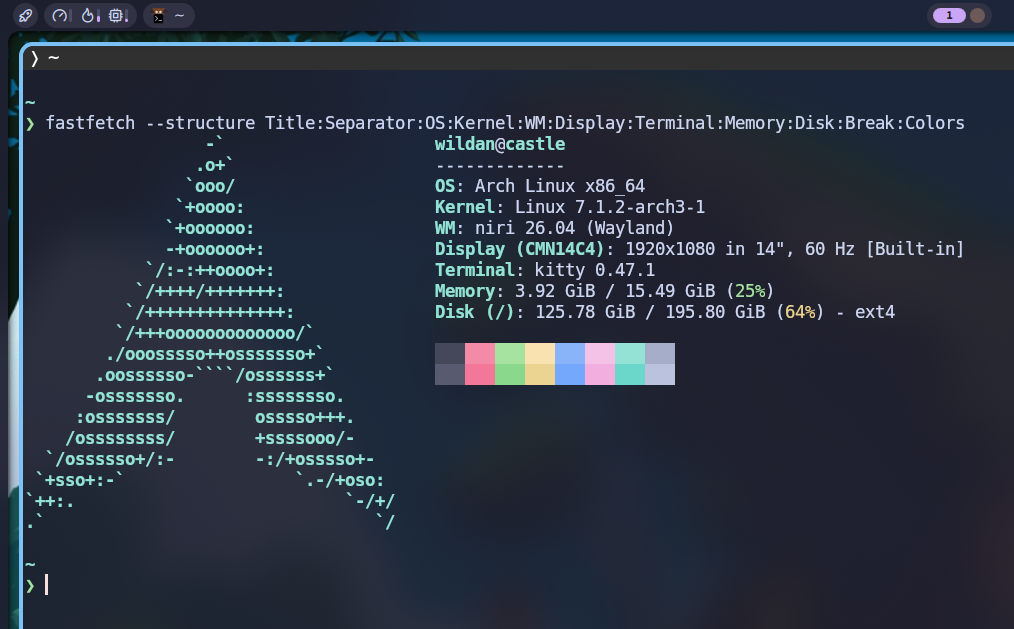
fastfetch custom outputfastfetch --structure title:separator:os:kernel), tapi, titik dua-nya tidak boleh typo dan tidak boleh ada spasi diantaranya.Tentu saja masih banyak hal dan fitur lain fastfetch yang belum di-cover pada artikel ini. Sila explorasi sendiri dengan melihat-lihat daftar bantuan ataupun man pages-nya.
fastfetch --help
man fastfetch
Sekian.
Terima kasih sudah membaca.
Sampai jumpa lagi di artikel saya yang lain!